Band leaders · Settings
Your request QR
One QR code for every show. Print it once on a banner, a poster or table cards. Guests who scan it get tonight's request page while you're on, and your page on other days.
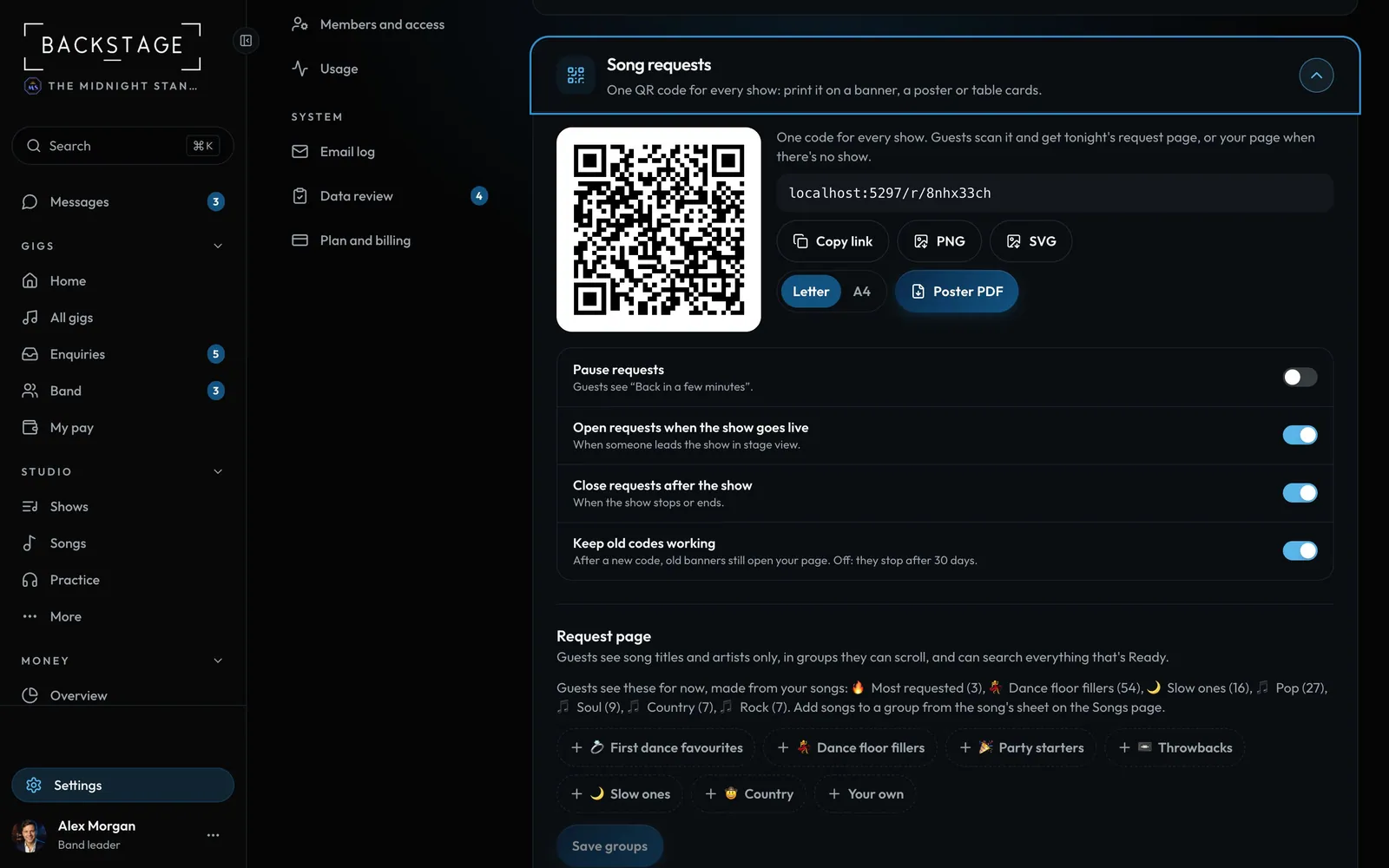
Swipe sideways to see the whole screen. Tap a number for its tip.
- Your request QRThe same code every night. Copy link sits beside it.
- Print itPNG or SVG for a designer, or a poster in Letter or A4.
- Pause, open, closePause for a moment. Open with the show and close after, or turn those off.
- Old codesMade a new code (only if this one is misused)? Old banners still open your page.
How to
- Open Settings > Profile > Song requests. Your code is made the first time you open it. In stage view, the same QR is at the top of the requests.
- Tap Copy link, or download it: PNG or SVG for a banner or a designer, or Poster PDF (pick Letter or A4) to print as it is.
- Open requests when the show goes live and Close requests after the show are on to start. Turn them off to open and close by hand in stage view.
- Pause requests for a few minutes, say during speeches. Guests see "Back in a few minutes", and the page switches back on by itself.
- Under Request page, pick the shelves guests scroll: put them in order, rename them, add an emoji, or remove one.
Tips
Tip
New code is for a code that's being misused. It warns you first: banners, posters and cards with the old code then open the new one while Keep old codes working is on, or stop after 30 days when it's off.Tip
Per-show links you shared before still work.